Blog
Get the latest news from tracezilla
Chat with trAIzy and changes in B2B Commerce
Enable traceability for non-traceable items
As of 12 August 2026, parts of the EU’s new Packaging and Packaging Waste Regulation (PPWR) will come into effect. The regulation introduces stricter requirements for documentation and traceability of packaging, meaning that many companies will need to review how packaging is registered in their ERP system.
For some companies, this means that packaging previously created without traceability must going forward be traceable via batch or lot number. We have therefore made it possible to easily enable traceability on items that have not previously been traceable.
You can enable traceability manually by opening an item under Inventory > Stock Keeping Units and changing the Enable traceability field to Yes.
Alternatively, you can bulk update your items. First export a file under Inventory > Stock Keeping Units > Export > Basic Information and change the value in the Enable traceability field to Yes and import the file in tracezilla.

Chat with trAIzy
You can now chat with our smart chat assistant trAIzy. trAIzy is a supplement to our support and can quickly find answers in our tutorials to point you in the right direction. You always have the option to get help from our support team during regular opening hours.

Partner view: Filter by invoice action
You can now filter by invoice action in the partner view. This makes it easier to bulk update invoice actions.

Improvements in B2B Commerce
Discounts and price details
Discounts can now be displayed in your B2B Commerce webshop.
The feature is based on discounts added to price lists- not via automatic order lines.

Your customers can see discount flags and price details in B2B Commerce.

How do I activate the settings?
You can find the settings under Company settings > B2B Commerce > General settings > Misc.

Images moved to the right side
We have optimised the product pages so that images are now displayed on the right of the product table.

Hide Upload order
It has been possible for your customers to update orders via an import template in B2B Commerce. You can now choose to hide this feature if you do not want to show it to your customers.
You can find the setting under Company settings > B2B Commerce > General settings > Sales.

B2B Commerce: Supplier
Link
It is now possible to include a link to the order when creating purchase orders and emailing order documents. This makes it even easier for your supplier to update information via the portal.
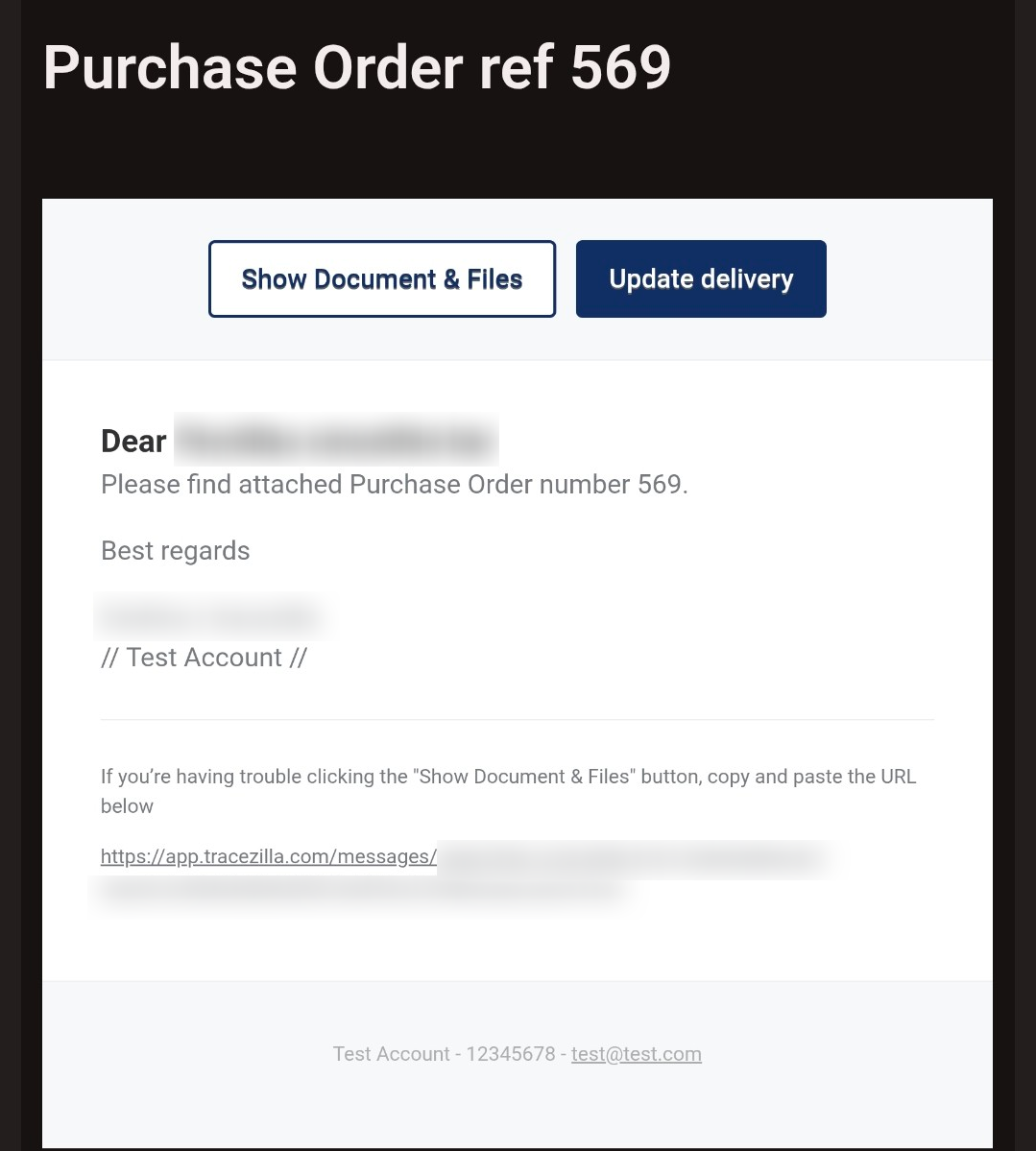
You can activate the feature in Company Settings > B2B Commerce > General Settings > Supplier.

How does the access restriction work?
The B2B user must have access to the portal for this to work.
Export / import
Now your suppliers can update the order using an import template.

Restrict tag visibility
Now you can choose which tags should be visible in the SKU overview as well as when you search for SKUs to add them to orders.

You find these settings in Company Settings > Misc. > User Interface > Tags.
Support for EUDR
We are currently working on preparing tracezilla to support companies in complying with the EUDR regulation.
As part of this, we have added two new trace systems and made their associated settings visible in the system.
They are part of upcoming functionality and have been released early to enable testing against standard integrations.
NOTE! The functionality is still under development.

Company setting: Locking of order lines
We have added a new setting under Company settings > Orders > Sales > Lot lines, Outbounbd. The default value is No, which means that the order lines are locked when an order is confirmed. In practice, this means that when a user deletes a goods line, it will not disappear from the order – it remains as a line with zero quantity instead.

New attributes
We have added two new attributes that are relevant for the seafood industry

The attributes can be activated in Company Settings > Basic Settings for Master Data > Stock Keeping Units > Attributes.
Fortnox:
The new features in the Fortnox-integration are only relevant for our Swedish users.
Send customer name instead of invoice partner name
You can now overwrite the billing partner’s name with the customer name.

You do this by creating and setting the tag “FORTNOX USE CUSTOMER” on the billing partner.
Do not book invoice
You can create a draft invoice in Fortnox without posting the invoice – use the invoice action Fortnox / Draft only.

Note: If you create drafts instead of posted invoices, it is important that you complete your invoices in Fortnox manually.
Want to know more about the features?
Don’t hesitate to contact our support if you have any questions or feedback about the new updates, or if you want to get started with any of the add-on modules (Power Pack, Tasks & Controls and B2B Commerce). Write to us on support@tracezilla.com
Receive our newsletter